

Ronald Lashley
-
Posts
34 -
Joined
-
Last visited
-
Days Won
2
Content Type
Profiles
Forums
Blogs
Downloads
Posts posted by Ronald Lashley
-
-
I have an LP 1/LE edition to add but when I go by the standard of naming it LP 1-LE its not working. So wondering for all the different styles in CB is there a master list for how to name a pic to upload?
Thanks
-
Had the same issue while in Canada last week while shopping. My collection was no longer in the mobile app or the wanted reports I created. Only the value was showing.
-
Can we have previous selections separate in both selections? Is it a bit of a pain to have to keep changing the input selection when you go from one to the other?

-
Thanks, sorry, I'm just now seeing this one. I guess I'll need to upgrade what I have. One last thing on this topic... When you right-click on a title you have the option of Print Price Labels and Identification Labels. Is there a way to set defaults for both of them? It falls in line with the above. No matter which one I click I have to change. I print two labels, one with just the barcode and the other with the comic information and pic like the above.
-
2 hours ago, Mark J. Castaneda said:
I should have asked earlier... you got the most up-to-date build for the CB2023 software? If not, download/install the revised CB2023 program installer from your online account here: https://www.comicbase.com/mycb/Registrations.aspx
create a fresh label afterwards and see if it will scan. Hopefully that works for you.
If not, contact our support team directly at support@comicbase.com. Take a photo of the model scanner so they have any idea which one you got so they can help you further.
Yes. I have tried that the few times above that i mentioned when reinstalling CB2023
-
On 7/19/2023 at 9:14 AM, Mark J. Castaneda said:
Wonder if the scanner is the problem...
Are you able to launch a basic Word or Text document, grab a few comics and test scan multiple times? The goal is to test whether the scanner is picking up all digits every time you scan. If its inconsistent then the scanner could be on its last legs and needs to be replaced.
Yes i am able to do that. I am now able to scan in barcodes from comics but still unable to scan in the barcodes CB creates.
-
Update. I looked at the order and even though it said
Upgrade to ComicBase Archive + DX Laser Barcode Scanner 11/27/2017
My laser I think is actually the DX Laser Mark 2 Model. The DX ones aren't usb and mine is. So I downloadedhttps://www.comicbase.com/Support/Easy_Setup_Guide_CB_DX_Laser_Mk_2.pdf
Used the reset then tried the Easy Setup. Still not working. So reset and tried the Expert and still not working.
Unistalled the CB2023 Archive and reinstalled it and the scanner Easy Setup and still no dice. Its not even finding the barcodes on the comics. Its transmitting all the digits as i see it in the Find screen but still coming up with
-
On 7/11/2023 at 12:04 PM, Mark J. Castaneda said:
if you still have the original manual it came with, see if there's a 'CODABAR' code you can program in.
I do not have the oroiginal that came with it. I went to the site and printed out the one listed there chrome-extension://efaidnbmnnnibpcajpcglclefindmkaj/https://www.comicbase.com/Support/CB_DX_Laser_Scanner_Setup.pdf
Now when i even type in the B#######D code it tells me "No Results Found". Not one of them is working. So now i fear none of the Barcode along with the numenclatures work. It is now not even scanning in the comics barcode. This is #FUBAR -
It is the DX-Laser one. I just looked in my order archive so its the first one you all released.
-
46 minutes ago, Mark J. Castaneda said:
does your scanner have the 'CODABAR' type programmed in to read those label barcodes?
*if you're using our current model scanners, it should be mentioned on the setup sheet. Here's a link to setup sheets if you need it: https://www.comicbase.com/mycb/Products/barcodesetup.aspx
I have the wired-with-stand version from you all from a few years back. On the bottom, it says XL-626A. Thanks
Have a trade-in and Up option? ?
-
5 minutes ago, Steven L. Dasinger said:
If a Quick Report will work for you, you can do an Advanced Find for Publisher (one or more) and use Quick Report on the results.
If you have to use one of the 'canned' reports
For Collection Report, Item Checklists, Price List, and Wanted Lists you can find the issues by Publisher, Mark all of them, and select 'List only Marked Issues'.
For all reports, you can choose Selected Series, click on Publisher to order by Publisher, click the first title for a publisher, scroll down to the last title for that publisher, press and hold SHIFT then click on that last title.
NOTE: None of these would be as easy as a dedicated set of Publisher reports. I am only trying to supply ways to get what you are looking for until this can be evaluated (and incorporated into CB?).
Thanks, for those workarounds, as I did start doing it that way. Just wanted to add a suggestion for future editions that may have been thought of but not implemented. Hopefully being able to run report parameters could be implemented to allow better tracking, filing, and separation based on publisher and not just comic title.
In the early stages of my having CB, I took the time (I was bored) to run the reports based on Comic Titles. Then I would notate on the PDF the draw location of that collection. At least then, I could store each PDF under Marvel, DC, or Indie and merge those files. That got old fast as a solution for ongoing tracking, retriveal, and storage maintenance. -
Right now, the Labels show you most of what you see on screen for the title i.e. Title, Variation, and Condition. Would be great to be able to print the pub date as well and as seen on the screen.
Also right now I'm printing two labels because,
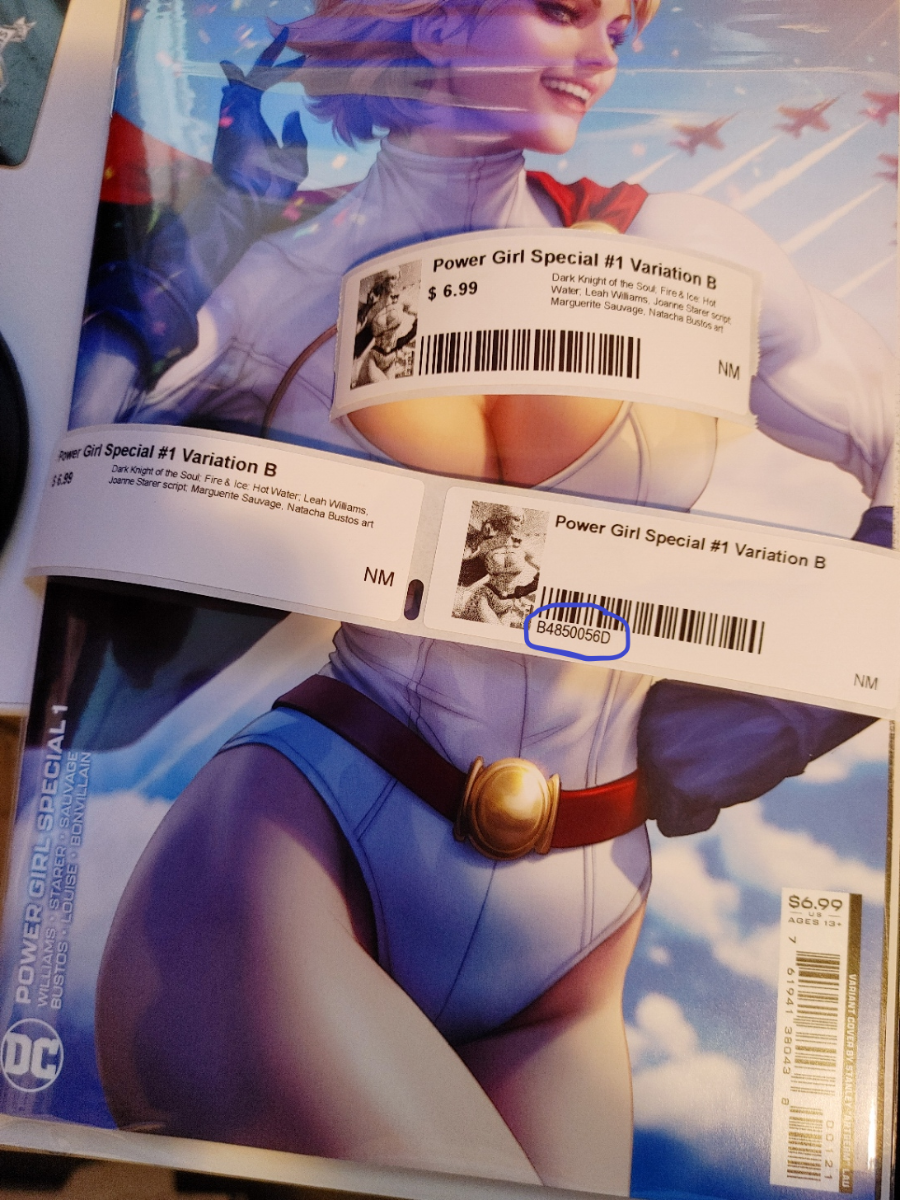
 for some reason no matter what I do, my barcode scanner scans in the comics with no problem but when I go to print the label, the scanner won't scan the barcode the system created so I manually type in the system created 9 digit nomenclature under the barcode that comes in the identification Label. So is there a way to have the label print out the first suggestion (date) along with Price, Bacrodes with Nomenclature, and for the sake of room Storylines or writers and artists if Bacrodes with Nomenclature is selected?
Right now i'm taking the non-picture price list barcode with the storyline and writers and artists label and placing it on the to back and the Identification Label with Cover Pic and barcodes with nomenclature on the back bottom of my bagged and boarded book. But would prefer to have just one. If i can ever figure out the scanner issue I would stick with the Price one (with the added date feature.
-
For those of us that split our collections by publishers, is there a way to run a report that way or at least as Marvel, DC, and Indie? If not, I'd like to suggest that option. I know I like to separate my collection by publishers. Or at least by the three listed above.
-
22 hours ago, Steven L. Dasinger said:
Ronald, this is good and should be useful.
But I think Fred is looking for both Missing and Owned issues in the Titles he owns.
I think he can get both the same way. One of my reports does that now but I don't Quick Report it to run the crystal report to export to excel
-
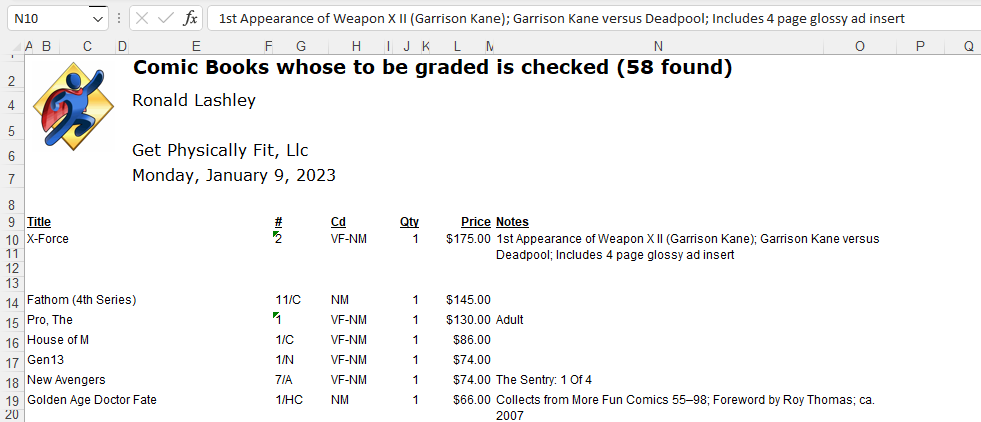
Update. I was able to export to excel just the comics owned. I did a simple one where i did my list of to be graded. Once done I selected them all then
Right Clicked and ran Quick Report which spits out a Crystal Report. From there you are able to export to excel or csv.
-
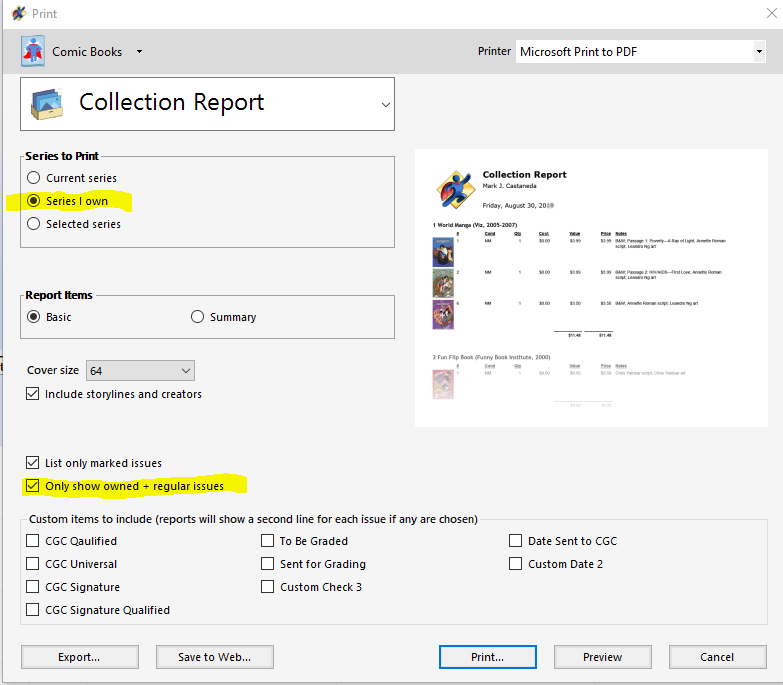
I'm sorry I wasn't following correctly, as you're trying to export to excel (which is an excellent idea for creating your reports). Still, I only want the basic information I accomplished by doing.
Report - Collection Report - and the following settings. (I knew it couldn't be that simple) that only offers HTML or Text, not .csv files. So I print it as PDF for my records.
-
On 10/3/2022 at 10:42 AM, Andrew d’Entremont said:
With regards to your first point, do you mean you'd like the ability to scan a barcode to do an item lookup? I'll admit it would be very handy to be able to jump to a specific issue to see how many copies you have and in what condition. The only way to do this now is to do an item lookup by series and then scroll though the list to see what you have.
Correct. Ideally scan it and it shows quantity have or if it was one from my wanted list would also be helpful. Since I have two mobiles, what I do is scan with one phone and use "find" on the other. Not ideal.
-
57 minutes ago, Fred Slota said:
The Export feature has a checkbox for Export only Owned Issues, but I'm looking to process information for Owned Titles only.
An exported Item Checklist Report allows me to select all Owned Titles and get some information about owned and missing issues, but I'm looking to get a little more information.
At a minimum, I would like to get Cover Date and/or Street Date. Wanted and Storyline would be good, too.
Export, including everything, returns too much information to load into Excel.
Any thoughts?
I am going to take a look because I have done this with only owned titles as I keep a PDF for insurance purposes.
-
I have always had the archive addition. However i have no interest in selling any of my collection. So wondering what features will i loose if i decide to give Pro a try.
-
4 hours ago, Andrew d’Entremont said:
I have two copies of the same book, published at different times by different publishers. One is the original first edition, and the second is a 15th anniversary edition, revised and updated.
My question is, how do I enter the 15th anniversary edition? Should I enter it as a new book since it is a different publisher, or should I enter it as a variation of the first edition?
Thanks!
If it is a different publisher, I think it is a new book. I would enter it as a new book and submit it if it's not already in the system. I know when I've done that, the entire run shows up in the next update.
-
Besides it being wireless, is there a video and explanation of the other significant differences also showing how this model recharges? And if I do, can I post my MK2 here for sale at a discount, or is that not allowed as I wouldn't know what else to do with it?
Thanks
-
I appreciate the mobile scanning feature when I'm out searching for comics. I have three suggestions and reasons for them to improve the app.
1. How many of us have been out and repurchased a 3rd or 4th of something we already have? (Raising Hand) this guy right here. Being able to cut down on that (unless I wanted to add another copy) and having access to my collection information on my mobile was one of the biggest selling points for me and keeps me renewing my membership. With that said, when you scan in a comic, and it populates with the content of that comic, it would help a lot if it also informed you if you already have this book in your collection with a line item titled "Own _____" above the "Add Qty___" line. I point this out because we either have to be the Rainman or be a Mentat to recall that information right then and there or leave the scan to go back to our Auto Report and scroll for days through our collection to see if we have it or not.
2. MN Guide data. It's great to see the NM Guide cost once the scan pulls up; however, if selected from the "Condition" pull down, another helpful thing might be to know the cost at that chosen condition. Right now, the feature of # of copies on Atomic Avenue is a great alternative to get price ranges, but again it takes us out of the app (well, not me; I have a dual-screen LG), and there are cases there are no available copies on Atomic Avenue so you would then have to click on Writer or Artist to get into Atomic avenue and manually type in the title.
3. If we scan it, another great addition would be another line item showing if we already marked this issue as one of our coveted "Wanted" items and, if not, the option to add it to our database as one we did want if we decide not to buy it at that time.
I am pleased with the app and its faster scanning and pulling up comics when I'm out. I have realized that after you scan and go back to scan again, you have to tap the screen for the camera to open again. This might be something with my mobile, but I'm not sure.
Thanks again to the app's programmers for making our (my) lives much more manageable.
-
 2
2
-
-
Thanks, i will give this a try.
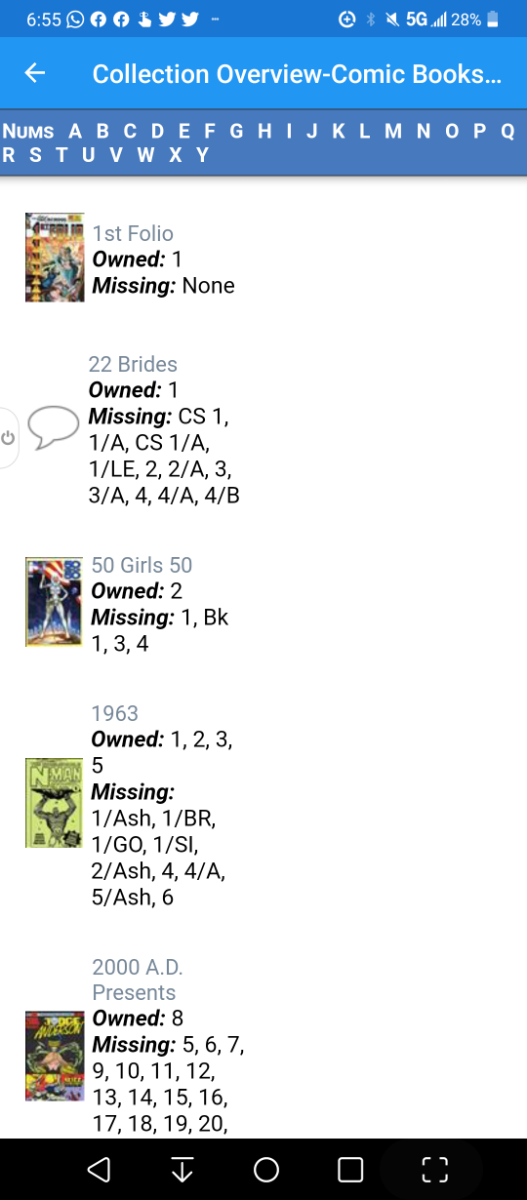
Tonight I'm attempting to get the app to upload my newly created segmented "wanted list" that does show up on my online account but for some reason, the app only wants to show the Collection Overview-ComicBooks (auto) report. Trying to sort this out before I go hunting at the ECCC tomorrow. I'm going to try uninstalling the app and reinstalling it now.
-
I don't know because i'm finally at the stage of printing out labels to tag my bags.
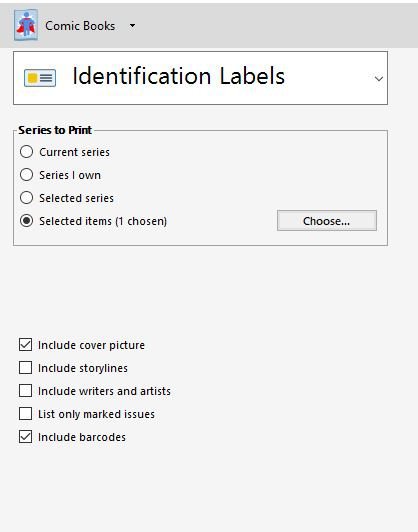
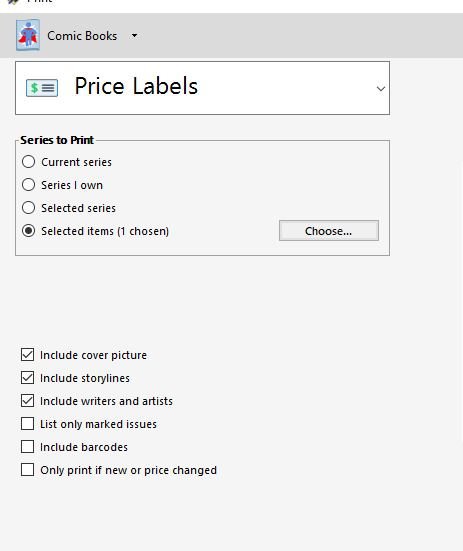
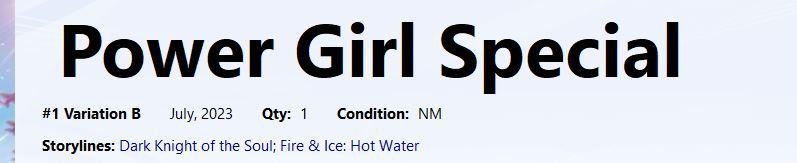 for some reason no matter what I do, my barcode scanner scans in the comics with no problem but when I go to print the label, the scanner won't scan the barcode the system created so I manually type in the system created 9 digit nomenclature under the barcode that comes in the identification Label. So is there a way to have the label print out the first suggestion (date) along with Price, Bacrodes with Nomenclature, and for the sake of room Storylines or writers and artists if Bacrodes with Nomenclature is selected?
Is there a list for naming pictures by the CB Standard
in Tech Support
Posted · Edited by Ronald Lashley
i don't know what to tell you Steve its in the system for comics. There should be a list we can print out or save for all the name variations when naming images we upload.
and its there as well. but that doesn't help with naming conventions i know to replace the "\" with a - but thats not working for this.